A three-part series
In part 1 we described the idea: one tiny script of our own, one endpoint on our own server, and five analytics tools fed from there. This part is about what made it actually work: the event design, and the surprises each tool had waiting for us.
Start with a tracking plan, in code
Every event this site can send is defined in one file. Each one has a name, its exact properties, and a short description. Our server refuses any event that isn't in that file. It's a tracking plan in the old-fashioned sense, except that the code enforces it, so it can't drift away from reality.
Right now there are three events:
page_view: every page load, and every navigation within the site.element_click: any click on something interactive.web_vitals: real page speed, one per page load. That's the subject of part 3.
Every event also carries the same context: the page, the referrer, the visitor's language and time zone, screen size, the session's campaign tags, and (added by our server) browser, operating system and device type.
Click tracking without autocapture
Autocapture tools record every click so you can decide later what mattered. We wanted most of that benefit without the script, so we built the smallest version that's still genuinely useful.
1
One listener for the whole page
A single listener catches clicks on anything interactive: links, buttons, menus, tabs, toggles. No component on the site contains tracking code, so nothing is forgotten when a page is added.
2
A readable name for what was clicked
It records the text a person would see. For a whole clickable card, it uses the card's heading rather than every word inside it. Anything important can be given a permanent name with a data-track attribute, so reports survive copy changes.
3
Where it was on the page
On our block-built pages, every section is labelled, so a click is recorded as, say, the second button in "Hero · Section 1". That answers the question every marketer actually asks: which button on which part of the page?
4
Where it leads
Internal page, outside site, anchor, download, email or phone. For email and phone links we record only that kind of link, never the address or number itself.
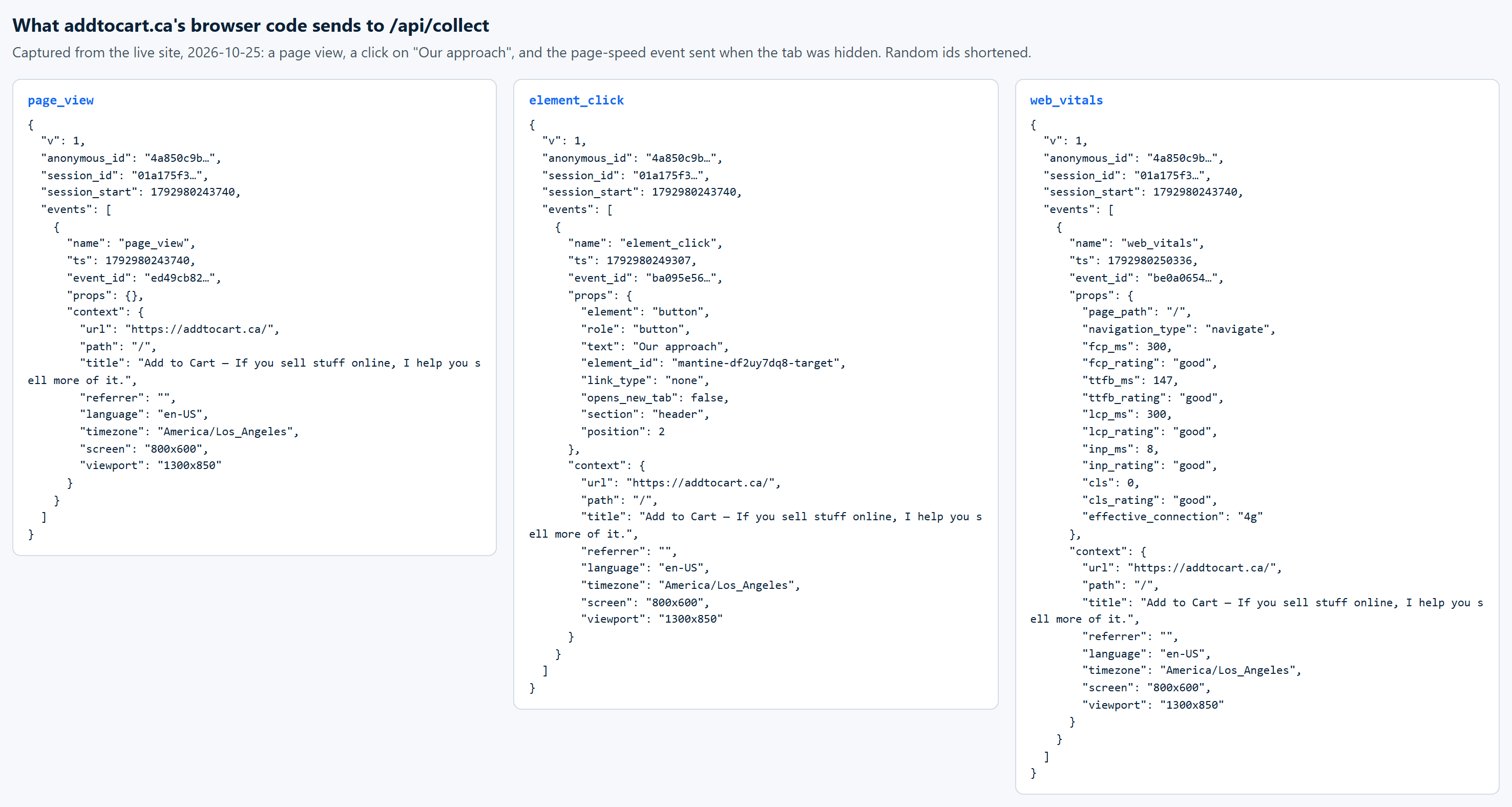
Here's what the browser really sends, captured from this site:
Something the capture taught us
Look closely at that click. It recorded an element id that our UI library generated automatically, which can change from one release to the next. That's noise in a report, and we'll filter ids like it out. It's a good example of why we look at raw events, not just dashboards.
Speaking each tool's language
The same event doesn't look the same to every tool. Our server translates each one into the tool's own conventions, so its built-in reports work:
- Page views use each tool's native name. It's
page_viewin GA4,$mp_web_page_viewin Mixpanel,$pageviewin PostHog,[Amplitude] Page Viewedin Amplitude, and Statsig's own autocapture name. Without that, half of each tool's ready-made reports would stay empty. - Ids in each tool's format. That's the session start in seconds for GA4, milliseconds for Amplitude, the session id itself for Mixpanel and PostHog, and a "Stable ID" for Statsig.
- Duplicate protection. Every event carries a unique id, which the tools use to discard accidental duplicates.
Each tool also had something to teach us.
- GA4 accepts at most 25 parameters per event, and server-side events don't fill its built-in device and location reports. We send browser, operating system and device type as custom parameters, which you register in GA4 to report on.
- Statsig looked broken at first: its standard reports stayed empty. Nothing was wrong. Its reports run behind, but its Logs Explorer showed every event within seconds.
- Statsig also shows the user id as empty on every event. That's correct: our visitors are anonymous, identified by Statsig's Stable ID.
The API that said 200 OK and dropped everything
This is the one worth remembering.
On the first day, GA4, PostHog and Amplitude all showed our events. Mixpanel showed nothing. Its API accepted every single request with a success response, and our server logs were clean.
The cause: our Mixpanel project stores its data in the EU. We were sending to Mixpanel's default endpoint, which is in the US. That endpoint happily accepts events for an EU project, then silently discards them.
We found it by sending three labelled test events, one to each of Mixpanel's regional endpoints (US, EU and India). Only the EU one arrived. One setting later, everything flowed.
Accepted is not the same as delivered
An API saying 200 OK only means it received your request. Before trusting any new integration, check the data in the tool's own live view, and check which region your project lives in before you connect it.
How we test without polluting the data
- Nothing leaves our machines by accident. Data is only forwarded to the tools from the live production site. Our own testing, preview versions and local development never reach the reports, unless we deliberately switch that on.
- Live views before reports. GA4's Realtime and DebugView, and Statsig's Logs Explorer, show events within seconds. Standard reports can take hours.
- Test keys outside the site. To prove a key worked, a small script sent one labelled test event and printed only the reply code, separately from the site itself.
- Bots filtered at the door. Crawlers and automated browsers, including Google's own Lighthouse, are dropped before anything is forwarded. Our own automated tests don't skew the numbers.
In part 3, we turn the pipeline on ourselves. We look at what Google's PageSpeed score really measures, why it swung from 84 to 99 on identical code, and how we added real visitors' page speed to all five tools.